Loki - From Naming Servers After Gods to Monitoring Them
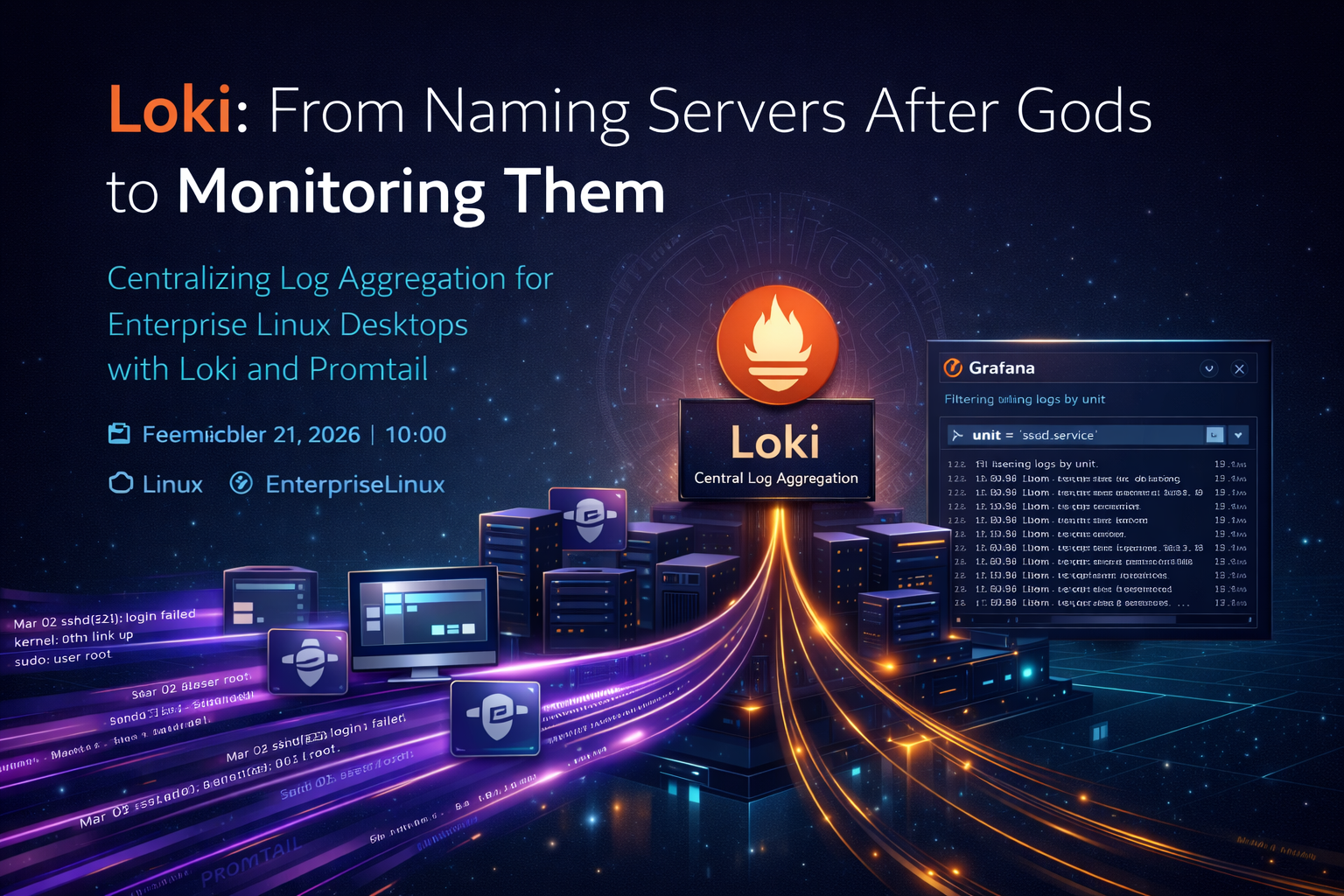
“The goal is to turn data into information, and information into insight.” — Carly Fiorina
When I started in IT over 40 years ago, one of the biggest points of contention around servers wasn’t about hardware specifications or performance. It wasn’t about which system was more powerful. It was about whether server hostnames should come from Greek mythology or Norse mythology. I’m not kidding. I attended multiple meetings — at different companies — where this was seriously debated for new server deployments. I don’t remember how many Zeus servers I encountered over the years, but there were a lot. It seemed like every primary domain controller was named Zeus or Argus.
Working last week with Prometheus and this week Loki brought back those memories. Back then, you would never name a server Loki — you didn’t want it acting up. And when you were running on a star-ring network, you certainly didn’t want to tempt the gods.
Table of Contents
- Log Monitoring
- What Is Loki?
- Setting Up Loki
- Addressing the Security Reality
- Why Do This?
- Part of a Larger Journey
This article is part of an ongoing series documenting the build-out of a Linux-based corporate desktop environment. The previous article covered Prometheus for metrics collection — CPU, memory, disk, and network data scraped from both servers and Fedora Kinoite desktops. Prometheus answers the question “how is the system behaving?” Loki answers a different but equally important question: “what happened?” Together, they form the foundation of the observability stack that will eventually feed into Grafana for unified dashboards and alerting. If you haven’t read the Prometheus article yet, it’s worth starting there — the label-based organization and management VLAN segmentation described there carry forward directly into the Loki setup.
📋 Log Monitoring
When I first started in IT, I worked at a company with about 50 employees and two or three servers. There was one main system administrator and a programmer who wore two hats as the backup administrator. Monitoring servers was straightforward because the two systems sat under the admin’s desk, and he used a KVM switch to move between them.
Fast forward 40 years and the landscape has completely changed. Companies now run 500 or more virtual machines across multiple data centers, and it’s easy to lose track of how many containers are running at any given time. Windows and Linux generate logs differently, and when you add in application-specific logs, the volume and variety of data can quickly become overwhelming. Without a centralized log aggregator, it becomes nearly impossible to maintain visibility. That’s where Loki comes in.
🔍 What Is Loki?
Log monitoring has become a critical component of both server and desktop management. With AI-driven hacking attacks on the rise, what appears to be a minor probe on one server could actually be part of a coordinated attack across the entire infrastructure. Being able to collect, centralize, and analyze logs in one location is no longer optional — it’s essential.
That’s where Grafana Loki comes in. Unlike traditional log aggregation systems such as Elasticsearch, Loki does not fully index log content. Instead, it indexes only the metadata labels associated with the logs, while storing the raw log content in compressed chunks. This design significantly reduces storage requirements and CPU overhead when searching, making it efficient and scalable for modern environments.
Loki is queried using LogQL, its own query language, which is intentionally similar in style to PromQL from Prometheus. If you’ve already set up Prometheus in your environment, the learning curve for Loki is much lower than starting from scratch.
⚙️ Setting Up Loki
Installing Loki on the Server
Loki was installed from GitHub, which required a few preparatory steps. A dedicated loki system user and group were created first, with no login access:
1
2
sudo groupadd --system loki
sudo useradd --system --no-create-home --shell /sbin/nologin --gid loki loki
The required directories were then created with appropriate ownership:
1
2
sudo mkdir -p /etc/loki /var/lib/loki
sudo chown -R loki:loki /etc/loki /var/lib/loki
The Loki binary was downloaded from the GitHub release page and installed into /usr/local/bin/:
1
2
3
curl -LO https://github.com/grafana/loki/releases/download/v3.3.2/loki-linux-amd64.zip
unzip loki-linux-amd64.zip
sudo install -m 755 loki-linux-amd64 /usr/local/bin/loki
A minimal configuration file was placed in /etc/loki/loki-local-config.yaml:
1
2
3
4
5
6
7
8
9
10
11
12
13
14
15
16
17
18
19
20
21
22
23
24
25
26
27
28
29
auth_enabled: false

server:
  http_listen_port: 3100

common:
  path_prefix: /var/lib/loki
  storage:
    filesystem:
      chunks_directory: /var/lib/loki/chunks
      rules_directory: /var/lib/loki/rules
  replication_factor: 1
  ring:
    instance_addr: 127.0.0.1
    kvstore:
      store: inmemory

schema_config:
  configs:
    - from: 2024-01-01
      store: tsdb
      object_store: filesystem
      schema: v13
      index:
        prefix: index_
        period: 24h

limits_config:
  retention_period: 30d
A systemd service unit was created at /etc/systemd/system/loki.service to manage the application lifecycle:
1
2
3
4
5
6
7
8
9
10
11
12
13
14
[Unit]
Description=Grafana Loki
After=network.target

[Service]
User=loki
Group=loki
ExecStart=/usr/local/bin/loki -config.file=/etc/loki/loki-local-config.yaml
Restart=on-failure
ProtectSystem=strict
ReadWritePaths=/var/lib/loki

[Install]
WantedBy=multi-user.target
The service was then enabled and started:
1
2
sudo systemctl daemon-reload
sudo systemctl enable --now loki
Once started, Loki was ready to aggregate logs — but it still needed clients to send them.
Note on SELinux: The series environment uses Rocky Linux and Fedora Kinoite, both of which run SELinux in enforcing mode by default. Because Loki was installed from a GitHub tarball rather than a distribution package, no SELinux policy module is included. After installing the binary, apply the correct file context and verify there are no AVC denials:
Setting Up Promtail on Servers and Kinoite
To ship logs to Loki, an agent called Promtail is used. Promtail runs on Linux servers and desktops and pushes log data to the Loki server.
A note on Promtail’s future: Promtail is currently in maintenance mode. Grafana’s strategic successor is Grafana Alloy, which uses the OpenTelemetry Collector model and supports a broader range of data sources. Promtail remains widely deployed and fully functional, but for new long-term deployments it is worth evaluating Grafana Alloy as the forward-looking choice.
Kinoite Desktop
On the Kinoite desktop, Promtail could not be installed directly via RPM or DNF, so an RPM package had to be created manually from the GitHub release packages. To make Promtail compatible with the OSTree-based update model of Kinoite, the custom RPM included the creation of the promtail system user and a systemd service definition.
The RPM spec file created the system user and added it to the systemd-journal group — required for reading journal logs — and placed the binary in /usr/local/bin/:
1
2
3
sudo groupadd --system promtail
sudo useradd --system --no-create-home --shell /sbin/nologin --gid promtail promtail
sudo usermod -aG systemd-journal promtail
Once the RPM was built, it was added to the Kinoite OSTree build, and a new desktop image was generated. The desktop was first tested in development, and after validation, systems were upgraded to the new Kinoite build. After rebooting, the desktops began successfully pushing logs to Loki.
Server Installation
To maintain version consistency between desktops and servers, the same Promtail version from GitHub was used across all systems. The same user and group setup was applied on Rocky Linux servers, including systemd-journal group membership:
1
2
3
4
sudo groupadd --system promtail
sudo useradd --system --no-create-home --shell /sbin/nologin --gid promtail promtail
sudo usermod -aG systemd-journal promtail
sudo mkdir -p /etc/promtail
A Promtail configuration file was placed in /etc/promtail/config.yml:
1
2
3
4
5
6
7
8
9
10
11
12
13
14
15
16
17
18
19
20
server:
  http_listen_port: 9080
  grpc_listen_port: 0

positions:
  filename: /tmp/positions.yaml

clients:
  - url: http://<loki-server-ip>:3100/loki/api/v1/push

scrape_configs:
  - job_name: systemd-journal
    journal:
      max_age: 12h
      labels:
        job: systemd-journal
        hostname: __HOSTNAME__
    relabel_configs:
      - source_labels: [__journal__systemd_unit]
        target_label: unit
A systemd service unit was created to manage the process:
1
2
3
4
5
6
7
8
9
10
11
12
[Unit]
Description=Promtail log shipper
After=network.target

[Service]
User=promtail
Group=promtail
ExecStart=/usr/local/bin/promtail -config.file=/etc/promtail/config.yml
Restart=on-failure

[Install]
WantedBy=multi-user.target
1
2
sudo systemctl daemon-reload
sudo systemctl enable --now promtail
SELinux note (Rocky Linux servers): As with Loki, apply the correct SELinux file context to the Promtail binary and verify journal access is not being denied:
With this setup complete, Loki could collect logs from both servers and desktops, storing indexed label metadata centrally for efficient querying.
🔒 Addressing the Security Reality
Loki’s HTTP push endpoint listens on port 3100 by default. In a basic configuration, this endpoint has no authentication — any system that can reach port 3100 can push logs to it or query it.
That needs to be locked down intentionally.
At a minimum:
- Port
3100on the Loki server should only be reachable from Promtail source IPs, enforced viafirewall-cmd:
1
2
sudo firewall-cmd --permanent --add-rich-rule='rule family="ipv4" source address="<promtail-subnet>/24" port port="3100" protocol="tcp" accept'
sudo firewall-cmd --reload
- Promtail on desktops should only be reachable from the Prometheus server on port
9080(its own HTTP endpoint), restricted the same way. - Ideally, all Loki and Promtail communication travels over a management VLAN, consistent with how Prometheus traffic is segmented in this environment.
- If the Promtail configuration includes any credentials (e.g., for authenticated Loki deployments), those should be managed via environment variable substitution rather than hardcoded in the config file.
The open-source version of Loki does not include built-in TLS or authentication for the push endpoint. If you require encrypted transport, a reverse proxy such as nginx with TLS termination is the standard approach.
Monitoring improves visibility. It shouldn’t increase your attack surface.
🎯 Why Do This?
Loki is currently used to collect and centralize logs, but the long-term goal is to integrate it with Grafana. Within Grafana, log metadata can be filtered and analyzed alongside Prometheus metrics to detect issues across systems.
If existing logs lack sufficient detail, additional logging can be enabled. For example, the log level of services such as SSHD can be increased, or additional auditd rules can be created to fill gaps in visibility. Alerts can also be configured for specific events, such as repeated SSH login failures.
Those alerts can then trigger Grafana OnCall to notify the appropriate personnel. This positions Grafana as the central tool for monitoring system health, analyzing log data, and responding to incidents in real time.
The combination of Prometheus (metrics) and Loki (logs) feeding into a single Grafana instance is what makes this stack genuinely useful for enterprise operations. Neither tool alone tells the full story — but together, they remove the blind spots.
From debating whether Zeus or Odin should rule the data center to building modern, metadata-driven log aggregation systems, the evolution of IT infrastructure has been dramatic. Today, with tools like Loki and Promtail, we may not fear angering the gods — but we do respect the importance of visibility.
Part of a Larger Journey
Over the next 3-6 months, I plan to build out this environment and document the process through a series of articles covering:
- Article 1: Introduction - Why this project matters and what Linux can offer businesses
- Article 2: Proxmox Virtualization Best Practices - Setting up a robust virtualization foundation
- Article 3: Making Linux Work as a Corporate Desktop
- Article 4: OS Updates on the Corporate Linux Desktop
- Article 5: Enterprise Desktop Update Lifecycle with Kinoite
- Article 6: Bringing Prometheus Monitoring to the Linux Corporate Desktop
- Article 7: Loki: From Naming Servers After Gods to Monitoring Them (this article)
- Articles 8-12: SMB Infrastructure Planning, Ansible Automation, Core Services (AD/File/Print), Desktop Environment, and Security Hardening
My goals are to:
- Help business owners understand that there are viable alternatives for securing their systems
- Highlight what Linux-based systems are capable of in real-world business environments
- Provide practical tools, configurations, and guidance for users who are new to Linux as well as experienced IT professionals
- Continue developing my own skills in Linux-based security and infrastructure design
Call to Action
Whether you’re evaluating alternatives to expensive licensing, building your first Linux infrastructure, or simply curious about enterprise security on open-source platforms — I’d love to hear from you.
If you are a business owner, system administrator, or IT professional interested in improving security without relying solely on expensive licensing and third-party tools, I invite you to follow along. Experiment with these ideas, ask questions, challenge assumptions, and share your experiences. Together, we can explore what a secure, Linux-based business environment can look like in practice.
Need Linux expertise? I help businesses streamline servers, secure infrastructure, and automate workflows. Whether you’re troubleshooting, optimizing, or building from scratch — I’ve got you covered. 📬 Drop a comment or email me to collaborate. For more tutorials, tools, and insights, visit sebostechnology.com.
☕ Did you find this article helpful? Consider supporting more content like this by buying me a coffee: 